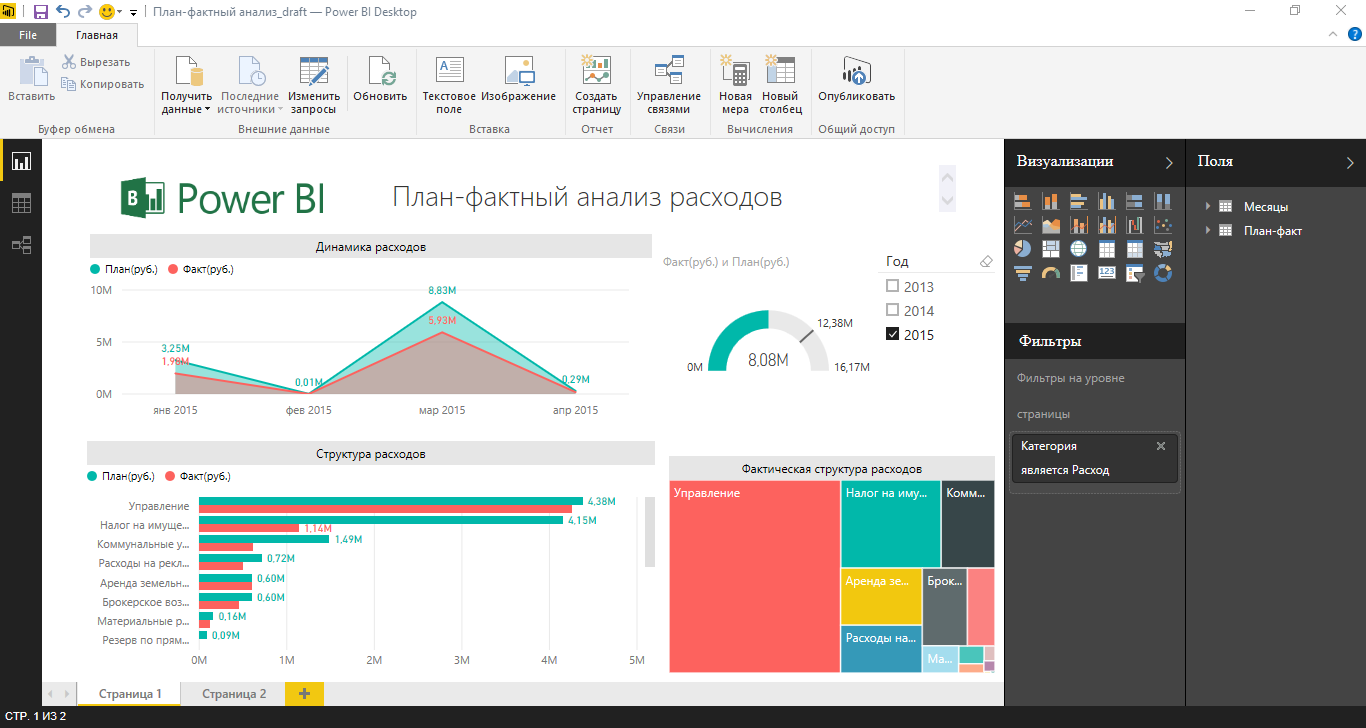
Welcome to our Excel masterclass, where we unlock the full potential of this powerful software and enhance your skills like never before! Whether you’re an aspiring data analyst, a finance professional, or simply someone looking to level up their spreadsheet game, this masterclass is designed just for you.
Excel has become synonymous with efficiency and productivity in today’s digital age. Its versatility and wide range of functions have made it a staple tool in various industries. From organizing data to performing complex calculations, creating visually striking charts and graphs, and conducting financial analysis – Excel can do it all!
In this blog post, we will dive deep into the world of Excel and explore its different features that will help you become a true Excel maestro. So, grab your keyboard and let’s get ready to unleash your Excel skills like never before! Get ready for the ultimate journey through cells, formulas, charts, graphs – everything you need to know to excel at Microsoft Excel.
The Different Types of Data in Excel
When it comes to working with data in Excel, understanding the different types of data is essential. Excel provides several formats that allow you to categorize and analyze your information effectively.
One common type of data in Excel is numerical data. This includes any values or measurements that can be represented by numbers, such as sales figures, prices, or quantities. Numerical data allows for mathematical calculations and analysis.
Textual data is another type frequently encountered in Excel. This refers to any information presented in text form, such as names, addresses, or descriptions. Textual data can be sorted alphabetically or used for filtering purposes.
Dates and times are also a crucial element in many datasets. In Excel, dates can be formatted to display various styles like day/month/year or month/day/year. Time values are typically represented using the 24-hour clock format.
Excel also supports special types of data like Boolean values (True/False), currencies (with specific formatting options), and percentages (formatted with the appropriate symbol).
Understanding these different types of data is vital for organizing and manipulating your information effectively within Excel’s cells and formulas. By utilizing the correct formatting options for each type, you can ensure accurate calculations and meaningful interpretation of your dataset.
How to Organize Your Data in Excel
Excel is a versatile tool that can help you effectively organize your data. Whether you have a small set of numbers or a large dataset, Excel provides various features to structure and arrange your information in a logical manner.
One way to organize your data in Excel is by using tables. Tables allow you to group related data together and apply consistent formatting across the entire dataset. You can easily sort and filter the table based on different criteria, making it convenient to analyze specific subsets of your data.
Another useful feature in Excel is the ability to create named ranges. Instead of referring to cell references like A1 or B3, you can assign names to specific cells or ranges of cells. This makes formulas much easier to read and understand, especially when working with complex calculations involving multiple cells.
Excel also offers powerful filtering options that enable you to quickly narrow down your data based on specific criteria. By applying filters, you can hide irrelevant information and focus only on what’s important for your analysis.
How to Perform Calculations in Excel
Performing calculations in Excel is one of the most powerful features that sets it apart from other spreadsheet software. With its built-in formulas and functions, you can easily manipulate your data and perform complex calculations with just a few clicks.
To begin, let’s talk about basic arithmetic operations. Adding, subtracting, multiplying, and dividing numbers in Excel is as simple as typing them into cells and using the appropriate symbols (+, -, *, /). You can even use cell references to include values from different cells in your calculations.
But Excel goes far beyond basic arithmetic. It offers a wide range of predefined functions for statistical analysis, financial calculations, date and time manipulation, and much more. Whether you need to calculate averages, find maximum or minimum values in a range of cells, or determine the future value of an investment – there’s a function for almost any calculation you can imagine.
Excel also allows you to create custom formulas using operators like SUMIF(), COUNTIF(), IF(), VLOOKUP(), and many others. These formulas enable you to perform more advanced calculations based on specific conditions or criteria.
How to Create charts and graphs in Excel
Charts and graphs are powerful tools in Excel that allow you to visually represent your data. With just a few clicks, you can transform rows and columns of numbers into compelling visuals that make it easier to understand trends and patterns.
To create a chart or graph in Excel, start by selecting the data you want to include. This can be done by clicking and dragging over the cells or using the Ctrl key while selecting multiple ranges. Once your data is selected, go to the Insert tab on the ribbon and choose from various chart types such as column, line, pie, bar, or scatter plot.
After selecting a chart type, Excel will generate a default chart based on your selected data range. You can then customize the appearance of your chart by adding titles, labels, legends, gridlines, colors, and more.
Excel also offers several advanced features for enhancing charts. You can add trendlines to show patterns over time or use error bars to indicate uncertainty in measurements. Additionally, you can create combination charts with multiple series overlapping on one axis.
How to use Excel for financial analysis
Excel is not just a tool for organizing data and performing calculations; it can also be an invaluable resource for financial analysis. With its powerful features and functions, Excel allows you to analyze financial data with ease and precision.
One of the key benefits of using Excel for financial analysis is its ability to handle large amounts of data. You can import your financial statements or other relevant data into Excel and use functions like SUM, AVERAGE, and COUNT to perform calculations on this data.
Another useful feature in Excel for financial analysis is the ability to create pivot tables. Pivot tables allow you to summarize, analyze, and manipulate your financial data in a dynamic way. With just a few clicks, you can transform rows of numbers into meaningful insights.
Excel also offers a range of built-in formulas specifically designed for financial analysis. For example, the PMT function allows you to calculate loan payments based on interest rate, term length, and loan amount. The PV function helps calculate the present value of future cash flows, while the NPV function allows you to determine the net present value of an investment.
Conclusion
In today’s fast-paced and data-driven world, having strong Excel skills or Excel spreadsheet training is essential for success in various fields. Whether you are a student, a professional, or someone looking to enhance their analytical abilities, mastering Excel can make a significant difference in your productivity and efficiency.
